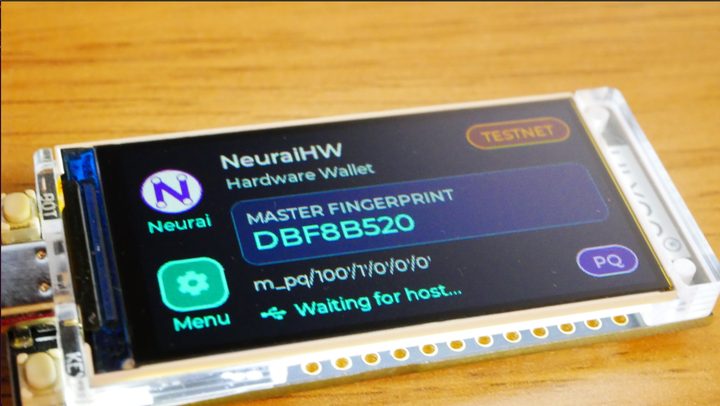
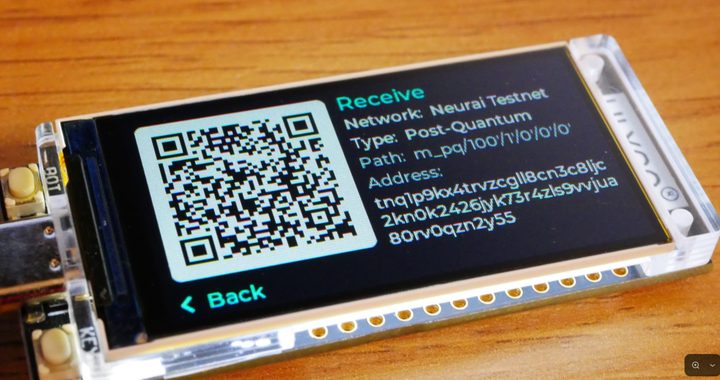
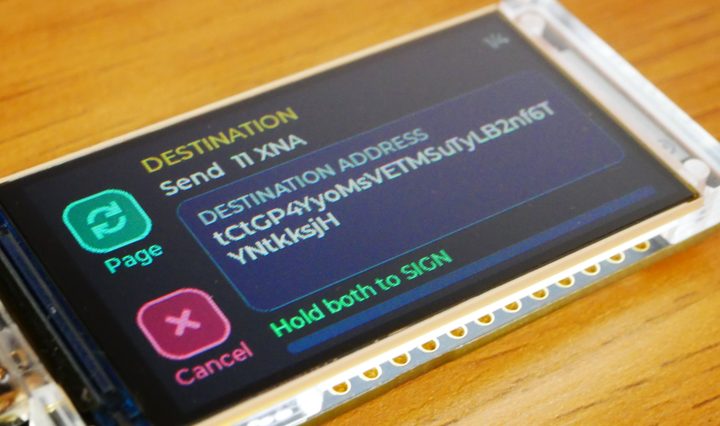
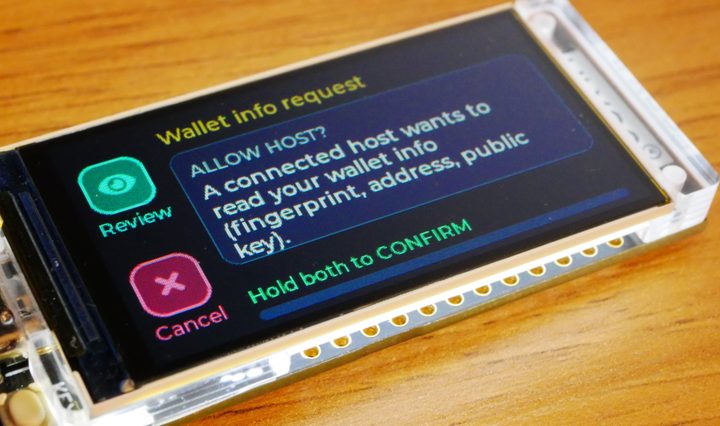
This page installs NeuraiHW, the official hardware-wallet software for
Neurai (XNA), onto a small pocket-sized device (the LilyGo T-Display S3).
Once it's installed, the device becomes your own offline wallet: your secret keys are
created and kept inside the device and never leave it — it simply approves and
signs your Neurai payments when you ask it to.
Everything happens here in your browser, talking to the device through its USB cable.
Nothing is sent over the internet. Just follow the three steps below.
This is how your wallet looks once it's set up:
HomeReceiveSendSign
1Check
2Connect
3Install
STEP 1 · BEFORE YOU START
Can this computer do it?
Installing the wallet needs a browser that can talk to USB devices. Let's make sure yours can — these three things all need a green check.
…
Your browser
…
Your computer
…
Secure connection
This computer can't install the wallet. Please open this page in
Chrome, Edge or Opera on a Windows, Mac, Linux or ChromeOS
computer. Phones, tablets, Firefox and Safari are not supported.
Checking your computer…
STEP 2 · CONNECT
Connect your device
Plug the device into a USB port on this computer, then press the button below. Your browser will ask which device to use — pick it and continue.
Connecting for the first time?
A brand-new device connects on its own — just plug it in and press the button.
If your device already runs the wallet and won't connect, put it into install
mode: hold the BOOT button, briefly press RST
(reset), then release BOOT — and try again.
Advanced
Connected—
On the device—
STEP 3 · INSTALL
Choose a version and install
Pick the wallet version below. The file is downloaded and automatically checked to make
sure it hasn't been tampered with before anything is written to your device.
Version—
Download size—
What this does—
Safety check—
Technical detailsoptional — open if something goes wrong